Uploading a blog on WordPress is simple. Log in to your dashboard. Go to Posts > Add New. Write your title and content. Add images and format with headings. Set categories and tags. Then click Publish. Your post goes live instantly. Follow the steps below for best results every time.
How Do I Add a New Blog Post in WordPress?
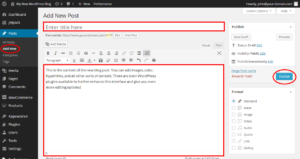
- Log in to your WordPress dashboard.
- Look at the left side menu.
- Click on Posts.
- Then click Add New.
- This opens the WordPress editor.
- Type your blog title at the top.
- The title becomes your main H1 heading.
- Start writing your content below the title.
- Use short paragraphs for easy reading.
- Add headings to break up long text.
You can now write your full blog post directly in this editor. The changes save automatically as you type.
What Is the Easiest Way to Upload Content to WordPress?
Many beginners copy text from Google Docs or Microsoft Word.This often brings unwanted formatting. It can break your post layout. The easiest way is to write directly in the WordPress editor. Or paste your content as plain text first.
Follow these steps
- Copy your text.
- In the editor, click the plus (+) icon.
- Choose the Paragraph block.
- Paste your content.
- Format headings as H2 or H3.
This method keeps your post clean and professional. It saves time and avoids formatting problems.
How to Add Images and Media When Uploading a Blog Post
Images make your blog post more attractive and easier to read. They also help users understand your content better.
- Click the plus (+) icon in the editor.
- Search for the “Image” block.
- Click it to add.
You have two options:
- Upload an image from your computer.
- Select an image from your Media Library.
After adding the image, write clear alt text. Alt text helps search engines and people who use screen readers.
To add a Featured Image
- Scroll to the right sidebar.
- Find the “Featured Image” section.
- Click “Set featured image.”
- Upload a good quality photo.
This image shows on your blog homepage and when people share your post. Always use relevant, high-quality images. Compress them before uploading to keep your site fast.
How to Optimize Your Blog Post for SEO Before Publishing
Good SEO helps more people find your blog posts on Google. You can improve it easily before publishing. Install a free SEO plugin like Yoast SEO or Rank Math. It shows a score and gives helpful suggestions.
Follow these important steps:
- Put your main keyword in the title.
- Use the keyword naturally in the first 100 words.
- Add clear H2 and H3 headings with related keywords.
- Write a short, attractive meta description.
- Add internal links to other posts on your site.
- Include relevant images with proper alt text.
Check the SEO plugin score. Aim for green or at least yellow. Preview your post on mobile.
Make sure it looks good and loads fast.
These small steps make your blog post rank better and attract more readers.
How to Add Categories and Tags in WordPress
Categories and tags help organize your blog posts. They also make it easier for readers and search engines to find your content. In the WordPress editor, look at the right sidebar.
To add Categories:
- Find the “Categories” box.
- Check the box next to an existing category.
- Or click “Add New Category” to create one.
Use 1 or 2 categories per post. This keeps your blog well organized.
To add Tags:
- Find the “Tags” box.
- Type your tags and press Enter after each one.
- Use 3 to 8 relevant tags.
Good tags describe specific details in your post. For example: “wordpress tutorial”, “blog writing”, “beginner guide”.
Adding categories and tags correctly helps your posts appear in the right places on your website.
Should I Publish Immediately or Schedule My Blog Post?
You have two good options when your post is ready.
Publish Immediately
- Click the blue Publish button.
- Your post goes live on your website right away.
- Use this option when you want the post to appear instantly.
Schedule for Later
- Click the arrow next to Publish.
- Select “Schedule.”
- Choose the date and time you want the post to go live.
- Then click Schedule.
Scheduling is useful for several reasons:
- You can write many posts in advance.
- It keeps your blog active even when you are busy.
- It helps you maintain a regular posting schedule.
Most beginners should publish immediately to see quick results. As you grow, scheduling becomes very helpful. Always double-check everything before you click Publish or Schedule.
Common Mistakes When Uploading a Blog on WordPress
Many beginners make these errors:
- Forgetting a featured image.
- Skipping alt text on images.
- Publishing without preview on mobile.
- Using too many plugins that slow the site.
- Not checking spelling and grammar.
- Forgetting to add internal links.
Always preview your post on desktop and mobile before you publish.
Quick Checklist Before You Hit Publish
Use this list every time:
- The title is clear and includes keywords.
- Content is well formatted with headings and short paragraphs.
- Images have alt text.
- Featured image is set.
- Categories and tags are added.
- Meta title and description are optimized.
- The post is previewed on mobile.
- Spelling and links are checked.
How to Edit or Update a Published Blog Post
Sometimes you need to fix or improve a post after publishing. WordPress makes this easy.
- Go to your WordPress dashboard.
- Click Posts > All Posts.
- Find the post you want to change.
- Hover over it and click Edit.
Make your changes in the editor:
- Fix spelling mistakes
- Add new information
- Update images
- Improve headings or content
When you finish, click the blue Update button. Your post stays live with the new changes. Search engines usually notice the update and re-index the post.
Tip:
After updating, preview the post on both desktop and mobile to make sure it looks good.
Conclusion
Uploading a blog on WordPress takes only a few minutes once you know the steps.
Write valuable content. Format it well. Optimize for readers and search engines. Publish regularly. Your blog will grow over time. Consistent posting brings more visitors and better results.
WordPress Blog Upload FAQ
How long does it take to upload a blog on WordPress?
Most people finish in 10 to 30 minutes. Complex posts with many images take longer.
Can I upload a blog from my phone?
Yes. Use the WordPress mobile app. The steps are similar but the screen is smaller.
Why is my pasted content not formatting correctly?
Paste as plain text first. Then add formatting blocks manually.
Do I need any plugin to upload a blog post?
No. The default block editor works fine. SEO plugins like Yoast help with optimization.
What is the difference between Posts and Pages in WordPress?
Posts appear in your blog feed with dates. Pages are static like About or Contact.